PDF Courier: Moving Beyond Email to Send Files

May 14 2010

Amyuni Technologies Blog
In our previous post we looked at how Manage File Tools (MFT) have become useful alternatives to send files compared to FTP and email applications. In this article we shall look at how PDF Courier can guarantee the delivery of your important documents and how it can prevent your attachments from being blocked by email Spam filters.

Over the years, Spam emails have dramatically increased. This is due to the proliferation of private and corporate personal information online. The result, are individuals unnecessarily and aggressively targeted by unsolicited emails, usually from unknown sources. As a result, many legitimate emails never make it to their intended destinations, either because they are inadvertently blocked by Spam filters or because recipients overlooked them. It’s true that there are “email acknowledgment” features senders can use to illicit reception, but often, these features are ignored by document receivers.

In addition, emails with attachments are especially prone to being excluded by Spam filters. Most email servers today are configured to scrutinize anything that looks suspicious. Whereas years ago executables and unfamiliar file extensions were the prime targets, today’s blocked attachments include images, PDFs, and even common file formats.

Three Options: One Purpose

By contrast PDF Courier features three different options that individuals can use to send their documents without email server restraints: A Web-based interface, a standalone desktop application, and a Microsoft Outlook® plug-in. All three share the same functionalities and all three have secure, guaranteed delivery capabilities to bypass email Spam filters.

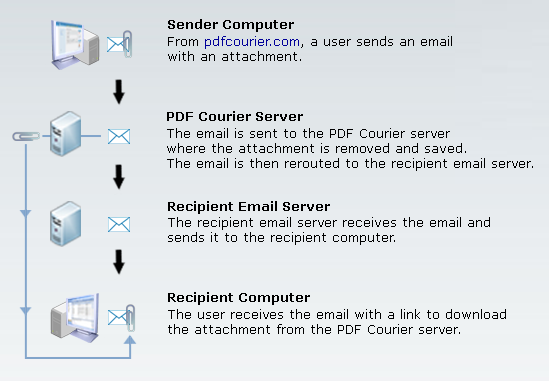
For example, when a user sends an email with an attachment (Figure 1) using the Web interface, PDF Courier will remove and temporarily keep an email’s attachment. The recipient will then receive the email and a prompt to go safely download the attachment from PDF Courier. Once the attachment has been downloaded the sender gets a notification message from PDF Courier to inform them of a successful reception.

Figure 1: PDF Courier Sending Email

canvas-blog-may-201021

In an upcoming post, we shall see how the PDF Courier’s Web easy-to-use functionalities can also be integrated directly into Microsoft Outlook.

Franc Gagnon is the technical copywriter for Amyuni Technologies
www.amyuni.com

PDF Courier: Managed File Transfer Made Easy

May 06 2010

Amyuni Technologies Blog
Sending files to and from organizations is part of our corporate communication. What originally began decades ago as simple file transfers between research and government campuses, has become part of business interactions around the world. FTP was the original workhorse that enabled us to send files, but as network capacities grew, so did our need to send larger and larger files.

Soon FTP carried complex documents, large images, and even multimedia. As a result, file transferring softwares and email applications became popular alternatives to FTP, but their popularity also came with a price. Security issues similar to those that plagued FTP often found their way into many file transferring softwares. And even though email applications were more secure than their file transferring counterparts, they too experienced problems, especially concerning privacy.

Inspired from FTP, Only Better

It wasn’t long before software developers recognized the need to provide end-users with tools that functioned like FTP, (but with better security) and also included notification options commonly found in email applications. The answer became what is known today as File Transfer (MFT) tools. MFT tools refer to a family of applications that enable end-users to send, track, and manage file transfers in and out of organizations.

Amyuni Technologies recognized the benefit of MFT tools and as a result, developed the PDF Courier; a simple and secure MFT tool to help users send and track their documents. With just a few options and configurations, the PDF Courier keeps file transfers simple without compromising security.

In our upcoming posts we shall explore some of the PDF Courier key features such as how it can:

  • Guarantee the delivery of your important documents and emails.
  • Prevent your documents and attachments from being blocked by email SPAM filters.
  • Convert your documents into PDF prior to being sent.
  • Track your documents and make sure they are delivered and read using real-time status notifications.
  • Transfer and store large files and avoid the storage limitations often imposed by many email applications.
  • Preview your sent and stored documents online, without the need to download them.
  • Work directly from your Microsoft Outlook® application.
Franc Gagnon is the technical copywriter for Amyuni Technologies
www.amyuni.com

PDF and JBIG2: Working With the Benefits of Both

Mar 24 2010

Amyuni Technologies Blog
Ever since the PDF’s payload began carrying images, file size quickly became an issue. As people began adding larger and larger images into their PDF it took longer to transmit these files and the space in which they were stored filled up faster. Luckily image compression technologies were never far behind to help alleviate these problems. One such technology is JBIG2, a bi-level (black/white) image compression format introduced by the Joint Bi-level Image Experts Group.

Unlike previous image compression formats (including its predecessor JBIG1) JBIG2 uses an intelligent algorithm to achieve its compression ratios. In short, the algorithm first searches for and recognizes similar groups of pixels within an image. Then, it creates symbols to represent common or repeated shapes it has found and stores them in a table. This lossless compression process does not affect image quality and the end results are documents that can be one quarter to one fifth of their original size.

To Whom Does JBIG2 Serve?

Government, judicial, and medical sectors are some examples of PDF-intensive work places where subtle implementations of the JBIG2 format in their work flows can help IT Managers reap noticeable cost saving benefits later on. Not only are PDF files that contain JBIG2 compressed information easier to send and share, but they are easier to store, they display rapidly online, and they are OCR ready.

The following table outlines some of JBIG2’s main features:

JBIG2 Feature: Benefit: Example:
Higher compression rates than its predecessors (e.g., JBIG1, TIFF G3, and G4). File size reduction capabilities up to 90% or higher. Reduction in storage space and transmission bandwidth. With JBIG2 compression, a 78 MB uncompressed 500-page PDF document, would see its file size drop to 12.7 MB. An equivalent TIFF file would be approx. 15.8 MB.
Lossy and lossless compression methods. Lossy yields a higher compression rate without any perceivable information loss. A pass to clean the document of dots and artifacts from a scanned document can help JBIG2 compression by coding more simple white areas.
The use of symbol dictionaries • For the compression of other images within the same document .
• Eventually one symbol dictionary could be used to recognize the text in the image. It contains the building blocks of a possible OCR procedure to help rebuild font information (if lost).
• Unique to one PDF document, a global JBIG2 stream can contain a dictionary of symbols used for all the pages of the document.
• Once the dictionary is built, software attempts to recognize letters and build legible text from them.
The use of arithmetic and Huffman coding schemes for bit representation. Huffman coding takes less page memory and has faster compression and decompression than arithmetic coding. However, arithmetic compression is slower, uses more memory but yields better compression results. JBIG2 can support the Huffman and the arithmetic coding algorithms for image structure information such as encoding schemes, references, indexes, sizes, offsets, and popular symbol identities.
ITU-T T.6 facsimile coding schemes and coding control functions for Group 4 facsimile functionalities which is activated by a MMR (Modified Modified READ (Relative Element Access Designate)) flag. Use of the latest facsimile logic for the compression of building block images. Any image leaf can be coded using MMR logic. In addition, a symbol in a dictionary or whole page can be found in the JBIG2 stream as a MMR image.
Stripped-page compression. JBIG2 can compress uninterrupted image flows. Under specific circumstances, if a scanner sends image information without a page cut, a JBIG2 stream can still take the data and compress it.
Most PDF viewers support reading JBIG2 (ver. 1.4 and higher). JBIG2 technology can be easily integrated into the PDF’s established technologies. Most of the PDF documents produced by high-end scanners with professional drivers are compressed with JBIG2 technologies.

JBIG2: Smaller Things are Easier to Handle

Amyuni Technologies has been carefully following the evolution of JBIG2 ever since the format became supported by PDF. Amyuni Technologies first included JBIG2 decoding (decompression) capabilities in their PDF Creator and PDF Converter products.

Now, with these products’ upcoming 4.5 releases, Amyuni Technologies extends their JBIG2 support to include its encoding (compression) capabilities in addition to OCR capabilities. Whether for PDF integration or publication and distribution purposes, end-users and developers will be able take advantage of JBIG2’s powerful black and white compression capabilities.

Dany Amiouny is the CTO for Amyuni Technologies
www.amyuni.com

Injecting Intelligence into PDFs with XMP (Part 2)

Feb 22 2010

Amyuni Technologies Blog
In a previous article, we reviewed the benefits and uses of PDF metadata. Specifically, we looked at the emergence of XMP metadata as a potential standardization for metadata frameworks and at how it can help PDF developers store, exchange, track, and retrieve information. In this article we will explore the injection of custom XMP metadata tags into existing PDF/A documents.

PDF/A and XMP: Inevitable Convergence

In 2001, developers recognized the need to add their own customized XMP metadata tags to PDF documents. They understood that by adding their own information, they could make a document easier to retrieve and include data that would not change regardless of where or how it was processed.

However, the introduction of the PDF/A standard has challenged some developers and has forced them to rethink how they would incorporate their XML customizations, especially into PDF/A documents. They realized that although there were many ways to add custom XML tags, there were only a few ways to keep their new data valid without compromising the PDF/A’s format restrictions.

Because of the rising popularity of PDF/A, Amyuni Technologies saw the need to provide developers with a tool that would help them solve specific PDF challenges, such as working within the confines of ISO archiving standard. This tool is the PDF Analyzer.

PDF/A: Driving Archiving and Document Conformance

One example of inserting customized XML information into PDF/A documents is with ERP purchasing applications. Often, developers use these applications to generate invoices or purchase orders in PDF/A for archiving and retrieval purposes. Although these files already contain XMP metadata, additional information can be added to make these files more useful—extractable information from the text content itself.

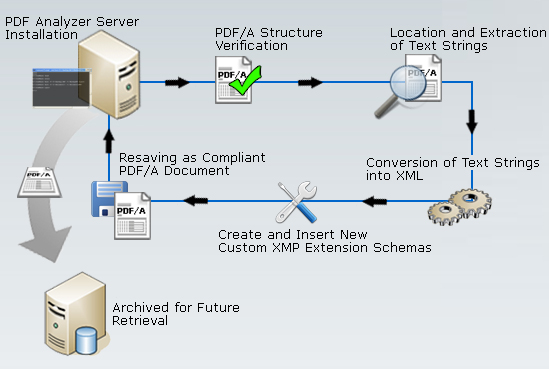
Items such as P.O. numbers, contact details, or the names of sales persons, departments, authors, and projects are all valuable pieces of information developers can use to create reports and enhance document retrieval. Developers can automate PDF Analyzer to:

  • Verify the internal structure of incoming PDF/A purchase orders from an ERP application for PDF/A compliance and repair them if necessary (and possible).
  • Locate and extract specific text strings (names, addresses, dates, etc.) from the PDF/A documents and convert them into XML (Figure 1).

Figure 1: Using PDF Analyzer to Extract and Convert Text Strings

pdf-analyzer2

  • Take the XML and create customized XMP extension schemas.
  • Reinsert the new customized XMP extension schemas into the XMP streams of the PDF/A documents.
  • Resave the document PDF/A and still keep its adherence to the ISO specifications.

Figure 2 outlines how this automated text conversion process would operate, either for single or multiple PDF/A documents:

Figure 2: Text String to XMP Metadata Workflow

xmp-metadata-extraction-and-reuse_200909285

When companies implement PDF/A, it’s often because they have high volumes of documents that require archiving. Insurance companies, banks, medical institutions, and manufacturing companies are just some examples of where the PDF Analyzer’s automation and XMP customization capabilities can bring a higher degree of efficiency to their documentation workflows.

Learn more about PDF Analyzer at www.pdfanalyzer.com.

Franc Gagnon is the technical copywriter for Amyuni Technologies
www.amyuni.com

Editing PDFs: What You See is Not Always What You Get

Jan 19 2010

Amyuni Technologies Blog
Many have surely asked: “Why can’t editing text in a PDF document be as simple as it is in a Word file?” Actually, the PDF’s inherent simplicity is the reason editing text can be challenging. Because despite the PDF’s evolution, its core design and purpose, the PDF was and will continue to be, a final presentation document exchange format.

Text: To a Viewer, It’s Just Code

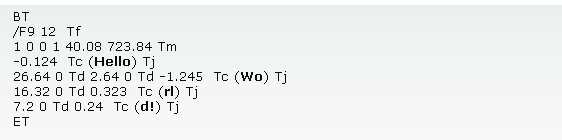
The reason behind the PDF’s text-editing elusiveness is the fact that words and sentences in a PDF document aren’t really text. They are collections of objects commonly referred to as text elements. A text element and its corresponding code instruct a PDF-viewing application which characters to draw and how to draw them at certain positions on a page. For example, figure 1 below, outlines how the two words “Hello World!” would appear to a PDF viewer before being displayed on screen:

Figure 1: Partial Code View of “Hello World!” (bolded for emphasis)
code8

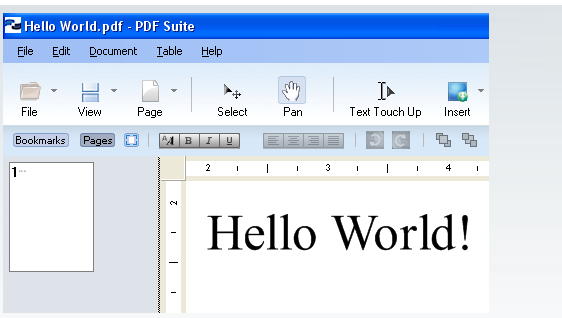
Once a PDF viewer such as the Amyuni PDF Creator displays them on screen, they appear as two connected words in a small sentence (Figure 2):

Figure 2: Text Elements Displayed as Two Words
hello-world-no-boxes

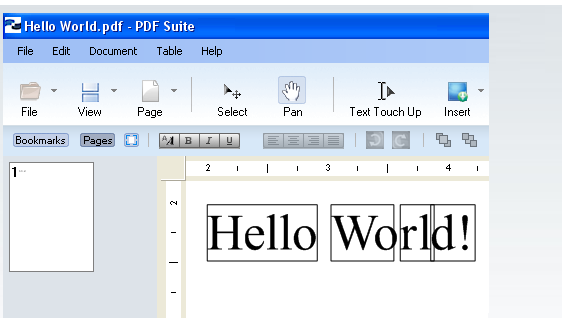
However if we enable the PDF Creator’s border-viewing options, we can see how the two words are in fact four separate text elements, each enclosed within their own outlined borders (Figure 3).

Figure 3: Text Elements Contained Within Borders
hello-world-boxes

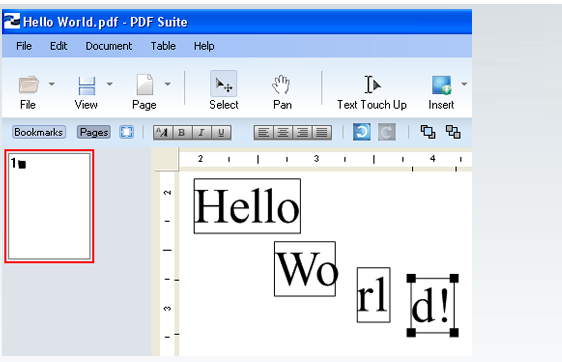
The borders are visual aids that PDF Creator can display to help users identify the positions of text elements on a page. We can reposition the text out of its normal “left to right” sentence flow (Figure 4), to demonstrate how it behaves more like separate elements.

Figure 4: Separation of Text Elements
hello-world-broken-up1

Trying to Keep the Eggs in the Same Basket

Borders identify each text element and helps users see how many characters are contained within each of them. A text element’s borders and contents are both modifiable, however this is not without introducing potential inconveniences such as character shifts, font changes, and altered sentence structures, etc. Changing a text element (such as inserting or removing characters) is really changing its structure and it should be done selectively.

Does this mean that the PDF’s design is to blame for our inability to easily edit its content? No. Its design is the PDF’s raison d’être—to prevent changing the document. However, because people will always need to edit PDFs, there must be a way for them to do so more easily. As we shall see in an upcoming article, there are several ways users can improve the way they edit PDFs. That includes approaching the PDF editing process with a different mindset and using an Amyuni PDF tool such as the PDF Creator.

Franc Gagnon is the technical copywriter for Amyuni Technologies
www.amyuni.com

Integrating Versatility and Speed Into Applications

Jan 18 2010

Amyuni Technologies Blog
From its humble beginnings as a document exchange format to its worldwide recognition as an open standard, the PDF has stood the test of time and is here to stay. Today, PDF integration can be found in everything from Web browsers, to document management systems, and long-term archiving practices, to name a few. As a result, developers have been (and will be) busy designing PDF technologies and integrating them into more and more applications.

PDF: It’s No Longer Just About Text

Developers who design ERP, BPM, or DMS applications, for example, need PDF integration that is easy, seamless, and affordable. Furthermore, they need PDF creating, editing, and converting functionalities that can be quickly accessed; either through a stand-alone product or through the integration of a few lines of code into their applications. These and many more PDF integration needs have been Amyuni Technologies’ fields of expertise for more than 10 years.

One Bundle: Many PDF Possibilities

With over a decade of PDF experience, Amyuni Technologies has produced reputable PDF tools designed with the developer in mind. One such tool is the Amyuni PDF Suite—composed of the Amyuni PDF Converter and the Amyuni PDF Creator.

The Amyuni PDF Converter is a printing tool that creates PDFs from any Microsoft® Windows® application. This Windows 7-certified printer driver enables developers to generate stable, well-structured PDF documents in a fraction of the time required by other tools. Conversion speed is crucial for applications that convert high volumes of documents in multi-threaded and 64-bit environments.

The Amyuni PDF Creator is a tool that enables developers to display, create, edit, and print PDF documents from any Microsoft Windows operating system. Powerful, stable, and easy to use, the Amyuni PDF Creator gives developers a high degree of control over PDF documents and their content.
Available for .NET and ActiveX development environments, the Amyuni PDF Suite’s versatility combines the industry’s fastest PDF conversion with powerful document creation and control capabilities.

File Exchange: It’s More Than Just the Format

The support of different file formats is another aspect of versatility. The Amyuni PDF Suite supports the compressed XRef table and PDF 1.7 formats and generates PDF/X-1 and PDF/X-3 documents  which ensures that developers always work with the latest file formats. Furthermore, with the Amyuni PDF Suite’s updated PDF/A engine, developers can produce PDF files that adhere to the  PDF/A standard for the long-term archiving of documents.

However, file support is more than just loading and creating documents that have different formats. File support is also about sending, receiving, and archiving documents using standards such as XMP metadata and the PDF/A archiving standard. Fortunately for developers, the Amyuni PDF Suite provides support for both. With the PDF Creator they can embed their own customized XMP metadata within PDF/A-1a and PDF/A-1b documents and still retain ISO format requirements.

In addition to various PDF file formats, the Amyuni PDF Suite also supports complex internal file structures such as layered documents. Developers can use the PDF Creator to load, display, and create layered PDFs. A layered PDF is a document that was originally generated by software with layer-generating capabilities such as AutoCAD® or Microsoft Visio®. The resulting PDF contains optional content (layers) that can be displayed or hidden by the reader.

Silverlight: Because PDF Is Not Just About Printing

Processing and generating different portable document formats is a developmental necessity, but what about their presentation? With today’s demand for online documentation, developers need to know they can display PDF content using the latest Web technologies. An example of one such technology is Microsoft’s Silverlight™. With the Amyuni PDF Suite, developers can integrate Silverlight-viewing functionalities into their applications with minimal code changes and export PDF files directly into XAML. Once in XAML, PDF content can be displayed directly from the Web page’s Silverlight controls.

The Amyuni PDF Advantage: It Starts from the Inside

The Amyuni PDF Suite offers many development benefits and one of these is its proprietary technology. Because the Amyuni PDF Suite does not rely on any external libraries (e.g., Ghostscript), developers are not required to license any external technologies to distribute applications that use integrated Amyuni products. This benefit means low-cost licensing options that are advantageous not only for developers but for large corporate distributions as well.

It’s no surprise Amyuni Technologies have been integrated into thousands of applications on millions of desktops worldwide, turning developers’ software requirements into reliable PDF solutions.

Franc Gagnon is the technical copywriter for Amyuni Technologies
www.amyuni.com

Amyuni PDF Converter 4.0 Gets Windows 7 Logo Certification

Sep 17 2009

Amyuni Technologies Blog
Amyuni Technologies is pleased to announce that its PDF Converter has obtained the Windows 7 Logo Certification. End-users and developers can benefit from this certification by working with a printer driver that is not only up-to-date, but also features more security and performance.

What is a Microsoft Logo Certification?

A Microsoft Logo Certification is the recognition that a software product has undergone and satisfied all of testing requirements specified by Microsoft. For a printer driver, some of these tests include:

  • Verifying that the printer driver does not crash the operating system even under heavy stress.
  • Verifying that the printer driver can run multiple print jobs at the same time.
  • Verifying that the printer driver does not take up too many system resources (i.e., memory, GDI handles, etc).
  • Verifying that the printer driver is compatible with the new features of the Windows 7 operating system.
  • Verifying that the printer driver performs equally well under a 32- and 64-bit Windows 7 operating system.

If the printer driver successfully completes all of the tests, the Amyuni digital signature is applied to it and it becomes Microsoft-certified.

More Than Just Testing

A digital signature acknowledges more than the passage of rigorous software testing. Similar to a “time stamp”, a digital signature confirms the authenticity of a printer driver and indicates that it has not been altered since its testing by its creator(s), third-parties, or by malicious intent (viruses).

Developing With a Certified Printer Driver

Developing with the Amyuni PDF Converter is more than innovating with the latest Windows 7 technologies. Once it is embedded into a third-party product, developers can submit their application under the scrutiny of a Microsoft testing environment and (if it passes) receive its own Windows 7 certification. Such testing for a third-party product augments its Windows operating system compliance, compatibility, and credibility.

Custom Branding: Extending Product Recognition

Developers who already own a PDF Converter printer driver license can also take advantage of Amyuni’s custom branding option. Custom branding replaces Amyuni Technologies’ proprietary details from the printer driver’s Printing Preferences with those of the developer or vendor. Custom branding extends third-party product recognition and increases company visibility.

Learn more about our branding and certification features at: www.amyuni.com.

Franc Gagnon is the technical copywriter for Amyuni Technologies
www.amyuni.com

Injecting Intelligence into PDFs with XMP (Part 1)

Sep 11 2009

Unlike the workflows that previously surrounded printed content, today’s workflows contain more changing variables, especially when it comes to documentation. Documents are created, repurposed, archived, retrieved, and even merged into others. In short – they encompass change. As a result, keeping an eye on change is an essential part of document management.

What is Metadata and Why Use it?

Metadata is descriptive information about data. It can be embedded into a PDF file (as XML) to help identify its contents or characteristics during its travels. Examples of metadata include: author names, document title, subject description, source type, etc.

Metadata can help manage change. When businesses integrate metadata into their work flows, they can better track their document life cycles and stay ahead of document changes more effectively. However, as businesses grow and integrate metadata, they often introduce:

  • Large amounts of unstructured metadata. For example, documents that are appended or merged with others acquire additional metadata along the way.
  • Different frameworks to address the problem of unstructured metadata. However, such frameworks hamper the efficiency of dissimilar systems to interchange or process information.

In and of itself, metadata is often used to address (short-term) document life cycles, especially within localized environments. However, if the volume and exchange of documents increases, so does the complexity of the corresponding metadata. Is there an alternative way to handle such document assets more effectively? This is where XMP attempts to position itself as a viable option.

What is XMP Metadata and Why Use it?

Introduced by Adobe in 2001, the Extensible Metadata Platform (XMP) is a labeling specification, based on the W3C Resource Description Framework (RDF). XMP provides a (cross-platform) format for creating, processing, and interchanging metadata.

Therefore XMP (metadata) is a type of metadata that adheres to specific standards that dictate how data is organized and accessed. XMP metadata can be embedded into PDF documents, HTML, SVG, XML files, and image formats such as JPEG, TIFF, PNG, GIF, etc.

Designed as a type of encapsulating framework, XMP can act as a bridge between different systems that need to exchange and use metadata. When it comes to documentation, embedding XMP metadata into PDFs improves their searchability and integration into existing work flows. In addition, long-term archiving standards such as PDF/A-1a and PDF/A-1b require the use of XMP to identify that their contents are PDF/A compliant.

Embedding Intelligence into PDFs

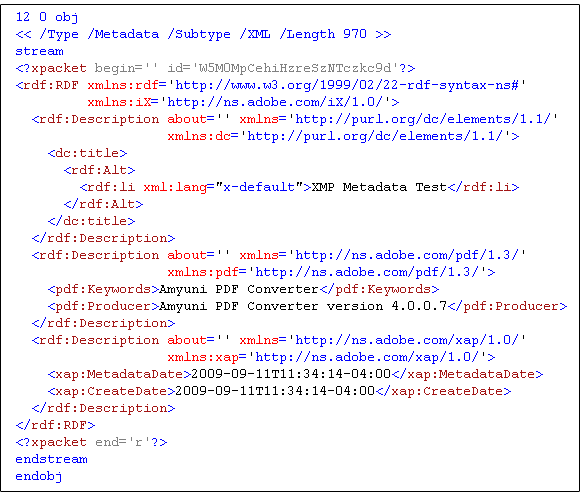
Documents become smart assets when they are accompanied with XMP metadata. Once data is embedded in a PDF file as an XML packet (Figure 1) it stays with the file so it can be recycled and repurposed across different platforms or content-management systems.

Figure 1: XMP Packet Within a PDF Object
code3

Customizing XMP

Because embedding XMP metadata differs slightly for portable document formats, developers should already be familiar with the XMP framework specifications and also how to work with the right XMP-enabled tools. An example of a such a tool is the Amyuni PDF Creator. Unlike other XMP-enabled tools which can only include standard XMP metadata, the Amyuni PDF Creator enables developers to include their own customized XMP schemas. This ability gives developers and document managers more authoring, tracking, and archiving options.

In part 2 of this article, we shall look at how a product like the Amyuni PDF Analyzer can be automated on a server to embed custom XMP schema extensions into PDF/A documents.

Franc Gagnon is the technical copywriter for Amyuni Technologies
www.amyuni.com

Automating Preflight with PDF Analyzer

Sep 01 2009

Amyuni Technologies Blog

From Check List to PDF Options

More than a decade ago Chuck Weger coined the term “preflight” to define the verification process of digital files prior to printing. Since then, this process or “check list” has materialized into integrated PDF options, plug-ins, and standalone products.

One such standalone product is the Amyuni PDF Analyzer. Its purpose: to verify the internal validity and conformance of PDF documents.

Automated Batch Processing

Unlike integrated options and plug-ins, PDF Analyzer can be installed on a server to perform the preflight of large numbers of documents as an automated batch process (Figure 1) without user interaction.

Figure 1: Automated Preflight
blog-article-image-212

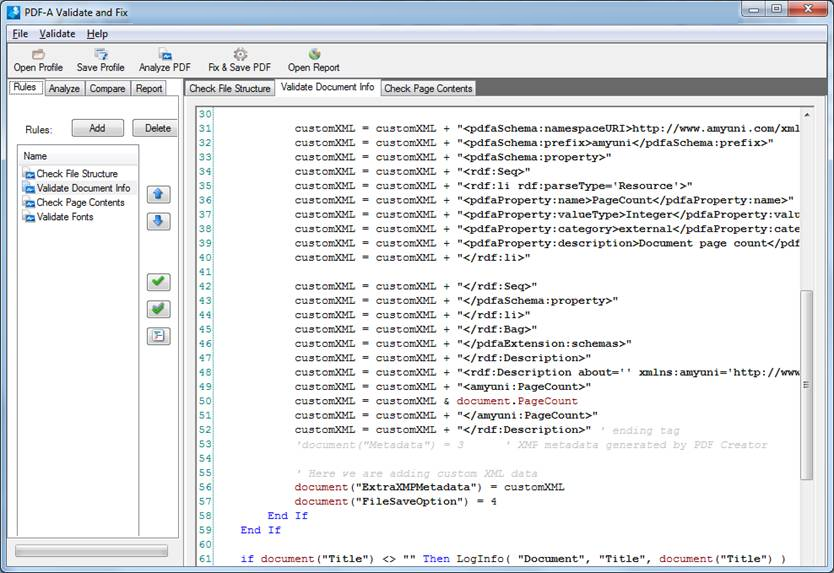
PDF Analyzer validates the structure of PDF documents with customizable VB.NET rule sets (Figure 2) to ensure that the structure of documents comply with industry or custom specifications.

Figure 2: VB .NET Rule Sets
blog-article-image-17

Customized VB .NET rules can be created, saved, and reloaded to verify that:

  • PDF document object instructions, syntax, and hierarchies do not contain errors.
  • Fonts and corresponding font information such as TrueType tables are properly embedded.
  • Embedded graphics and images are properly compressed for specific application processing.
  • PDF/A documents contain embedded fonts, XMP metadata, and device-independent colors, etc.
  • PDF/A documents do not contain encryption, JavaScript, embedded files, etc.

In addition to document analysis, you can also use PDF Analyzer to compare documents, verify sensitive metadata, and extract confidential information. Its design and functions stem from years of “on the field” application deployment experiences.

Learn more about PDF Analyzer at www.pdfanalyzer.com.

Franc Gagnon is the technical copywriter for Amyuni Technologies
www.amyuni.com

Missing PDF Fonts: How Metadata Affects Text Optimization (Part 2)

Aug 28 2009

Missing Font Information in PDFs: How Metadata Affects Text Optimization

This document is the second in a series of white papers that will explore the problem of missing font information in PDFs. Since its inception, the PDF has revolutionized the way individuals and businesses communicate and exchange information. The promise to maintain informational integrity and display content consistently across different platforms secured the PDF’s position as a leader in document exchange. Yet despite its innovations, the PDF’s own evolution would also bring with it, new challenges.

Missing PDF Fonts: Who Does It Affect and Why is it Important?

At first glance, missing font information may appear trivial. After all, who hasn’t experienced unintelligible characters while scrolling through a PDF? However, this problem is more than just improperly rendered text on a screen. For developers and IT managers, missing font information is problematic as it can delay software development and hinder the production cycle. For end‐users, it translates into lost time and compromised deadlines when they cannot display, print, or edit content properly.

The inconvenience of missing font information affects more than disgruntled individuals in the work place, it also undermines a document’s accuracy and its value as a product. The original purpose of the portable document format was to ensure content integrity and display consistency, but what happens when content is incomplete, cannot print accurately, or can even change?

The issue of improper text rendering is an ironic side‐effect of the PDF’s popularity. After all, the format’s portability is the cornerstone of its purpose. And although developers will always design PDFs to accommodate as many configurations as possible, ultimately, they will never be able to fully accommodate how users choose to work with the portable document format.

Missing Metadata and the User Experience

The portable document format is a complex technology and there are many internal variables that, if left unchecked, can compromise its final output. The following sections will provide a brief overview of one of the many problems that can occur when development corners are cut, specifically – the problem of missing or incorrect metadata.

When metadata goes missing or is incorrect (whether through corruption or developmental oversight), viewers cannot optimize the contents of the document, which means that the PDF cannot guarantee optimal usability within the context in which it is being used. For example, if a user is unable to display or print the contents of a document accurately, the usability of the PDF is not 100% reliable. Likewise, if a user is unable to search a document for a word or extract content, the PDF has also failed to provide optimal usability.

The term “context” is important because it is closely tied to the user experience and often, a positive or negative user experience influences product or vendor perception. Therefore, PDFs that cannot be properly optimized have the potential (if it happens often enough) to directly affect product perception. Unfortunately, many PDF developers are unaware that their PDFs are internally unsound (as in the case of missing or incorrect font information), and their work goes unchecked, only to fall under the scrutiny of disgruntled end‐users.

If metadata information goes missing, a PDF viewer can experience text rendering problems such as missing or unintelligible characters and a slow refresh rate. Within certain contexts, these problems are more apparent (and frustrating) than others. Take for example, working with documents remotely. Before the advent of thin client environments such as terminal servers, users worked with PDF documents locally, using a viewing application such as Adobe Reader.

Consequently, as the popularity of remote access grew, so did the expectation of working remotely with PDFs while maintaining the same real‐time functionalities. However PDF rendering issues are increased under these remote environments. The lack of quality and detail of poorly optimized text is more apparent, as is the document’s slower refresh rate.

Text Rendering on Screen

The process that a viewer or rendering application undergoes to display text instructions into meaningful glyphs on screen is complex. Figure 1 provides a simplified overview of this process; however it is important to note that it is during this process that missing metadata takes its toll. The following sections will outline some of different scenarios that might occur when font information goes missing.

Figure 1: Overview of the Text Rendering Process For On Screen Display (Click image to enlarge)
word-image-11

Missing Font Resources

When a PDF viewer encounters a text drawing instruction, it loads a specific font from the font resource. If this resource is missing (Figure 2), the viewer is unable to display any character(s) that uses the specified font and is also unable to provide a substitute for it. Most often the viewer will simply fail to load the document. In some cases the viewer may randomly substitute the missing fonts, but most times it produces unpredictable text rendering results.

Figure 2: Missing Font Resource
word-image-2

Missing Font Family Name

Another instance where font information can go missing is the font family name. For example, if the font family name “Arial” is missing (Figure 3), the viewer is even unable to determine an equivalent system font to use as a replacement. As a result, the viewer is unable to optimize the loading and rendering of the PDF file.

Figure 3: Missing Font Family Name (Click image to enlarge)
white-paper-part-2-image-3

Character Codes to Glyphs: The CMap Leads the Way

However, if the font resource is found, the viewer processes the information and depending on whether the fonts in the PDF are embedded or not, takes a number of different text decoding methods. If the font is embedded and the viewer is not set to optimize the rendering of text, the viewer will refer to the embedded (CID to Glyph) CMap in the PDF for information on how the font engine can convert the text into glyphs.

Essentially, the CMap is metadata (Figure 4) that maps character codes to their corresponding graphical representations (glyphs) in order for the font engine to render all the details of each character. However, if there is information missing in the CMap, the font engine is unable to accurately render the characters and the text is unrecognizable.

Figure 4: CID to Glyph CMap
white-paper-part-2-image-4

In this situation, anti‐aliasing is unable to function using Windows GDI. For thin client services such as remote terminals, PDAs, and virtualization environments, the absence of anti‐aliasing dramatically affects text processing speed and display quality (Figure 5).

Figure 5: Anti‐aliasing experienced with thin client services (Click image to enlarge)
white-paper-part-2-image-5

Viewer Rendering Options

If the font is not embedded, the viewer will look to the system to find a substitute or replacement font. In most cases, even though the binary information that makes up the font file is missing, its corresponding positional and descriptive metadata is sufficient to enable the viewer to compensate by substituting the font.

If a matching font is found on the system, the viewer proceeds to use the services of a font engine (such as GDI, FreeType, or commercial library) to render the final output to the screen. But what if the system fonts are not found or the viewer is not supplied with its own standard list of replacement fonts? The viewer will have to select the closest font replacement instead and fall back on the drawing parameters provided in the PDF’s metadata.

Without these parameters, the viewer is unable to provide a font engine with the information required to draw the glyph(s). If all the information in the font metadata is valid and well‐structured, the viewer is able to load the appropriate glyphs and the font engine can render the final output.

Character Codes to Unicode: Different Metadata, Same Result

As we have seen in the previous section, should there be missing information in the CMap, rendering problems occur yet again. The next question is then, what about the CID to Unicode CMap? What happens in the event that there is information missing there also? Just like its embedded counter‐part, the Unicode CMap provides character to Unicode mapping information (Figure 6). This includes character encoding parameters such as WinAnsi, MacRoman, and Unicode. And just as with the (CID to Glyph) CMap, if there is information missing in the Unicode CMap, the font engine is once again unable to draw the appropriate glyphs and the user can expect more of the same unpredictable text rendering results.

Figure 6: CID to Unicode CMap
white-paper-part-2-image-6

Incorrect Metadata

By contrast, incorrect metadata presents a different set of problems. Because the information is incorrect, the resulting text may (in extreme case) display incorrectly, as when a Unicode CMap table contains incomplete or wrong entries. In Figure 7, both lower‐ and upper‐case characters are pointing to the same Unicode values. As a result, the viewer may display the same characters for lower‐ and upper‐case letters.

Figure 7: Unicode CMap Errors
white-paper-part-2-image-71

Is There Blame to Place?

Most of the aforementioned problems occur even before the PDF reaches the viewing application. The causes? Often, weak document design and poor development practices are the main culprits behind many of the missing or incorrect metadata problems found in PDFs circulating today. For example, some developers choose not to embed vital font information if these make the file too large or if the data is not required by the PDF specifications.

Missing or incorrect metadata is a commonly overlooked problem because its effects are often only noticeable away from the familiar development environment. Lack of testing and the assumption that “if a PDF renders properly in Acrobat, it will render the same elsewhere” create problematic documents not only for end‐users, but also for the vendors that generate them.

So Many Branches to Prune - Starting at the Root: Where to Begin Tackling the Problem of Incorrect Metadata and Font Information

Where does one begin tackling the problem of incorrect metadata and font information? Since PDF development and production is always changing and growing, where is the starting point? What type of development tool or best practices should developers think about and why?

First and foremost, at the production level, developers need to use the right software tools. With the right tools, developers can start generating well‐structured PDFs that will optimize and render properly. Not only are these good documents appreciated by end-users, but other developers who need to work with them later in different environments also benefit. For example, some tools used by developers tend to remove some TrueType tables because according to the PDF specifications, they are not needed by Acrobat. However, these tables could be required for other purposes such as rendering PDFs on thin clients and PDAs, or exporting document content to other formats such as XPS or XAML.

Yet, using the right tools is often not enough. Because PDF is a complex technology, developers need to think “outside the box” especially regarding the PDF specifications. Many items are not included or mentioned in the PDF specifications, yet these are part of the solution when trying to create well‐structured and optimized documents. The following sections outline some of the best practices (based on years of working with countless problematic and optimized PDF documents) that Amyuni Technologies believes leads to better quality PDFs.

Solid Tables Mean Solid Font Files

Developers should ensure that embedded font files contain all of their respective tables. This way the font file is valid not only from a PDF standpoint, but also for other tools or font engines that might be required to process the document.

Include Valid Metadata

Developers should ensure that the font metadata contains a valid font family name, either through the FontName attribute or the FamilyName attribute. Using cryptic names such as “/F1234,Bold” to represent /Arial,Bold is permitted by PDF specifications, but prevents the viewer from doing any optimization, since the viewer will not recognize “/F1234”as a valid font family name. Developers also need to make sure that all metadata values reflect the actual value(s) of the font file, even if these values seem unimportant. A common example is setting an incorrect value for the AvgWidth which has no (immediate) visual effect until a viewer attempts to optimize the viewing of the PDF.

Font Duplication

Optimizing PDF files so that they do not contain multiple instances of the same font is also important. Developers frequently encounter PDFs that contain one instance of a specific font per page. Font duplication not only hinders optimization but it also increases file size and slows down document processing. True, it is easier to generate a PDF that contains multiple instances of a font, but then it becomes much more complicated to make sure those duplicate fonts are removed before saving the document afterwards.

Tools and Alternatives

PDF is not a new technology, yet there are constantly new PDF tools to work with. These include free online PDF conversion services, application plug‐ins, and popular open source tools. How is one to choose which tools offer the quality and optimization output most appropriate for the task at hand?

To many, PDF is simply the final output of work document. To others, (especially within development environments) a PDF is a document format that may be integrated into a larger, more complex series of tasks. For instance, some applications process large numbers of individual PDF files, remove specific or sensitive metadata from them and recreate single PDF documents.

By contrast, other applications take single large PDF files, and recreate hundreds (or more) of individual documents. In both cases, such applications routinely process PDF files that come from different producers, differ in (internal) structure, contain errors, or have vital information missing. It is these demanding PDF processing tasks (often in large corporate environments) in which the absence of the right PDF tools (or their customizations) and development experience, that lead to problems.

An example of a tool that was designed to operate within the confines of demanding PDF processing is the Amyuni PDF Converter. Aware early on of the technological and development directions that PDF was heading, the PDF Converter was designed to reflect and accommodate the ever‐changing PDF landscape. From the start, it provided what developers expected from a conversion tool – documents that rendered and optimized predictably, regardless of the environment output.

A Needle in the PDF Haystack

In addition to missing metadata, the inability to know why or where the internal structure of a PDF has gone wrong slows down development cycles, not to mention increases technical support costs later on. An example of a tool designed to explore these problems is the Amyuni PDF Analyzer. It was designed with the developer in mind, who needs to know if a document complies with minimum font specifications that are needed to optimize font rendering. Its ability to scrutinize the many PDF objects means developers have a better understanding of the inner workings of their documents and ultimately – give them greater control over how their documents are processed and optimized.

Learning From the Evolution of PDF

Having been involved with the portable document format almost from the beginning, developers at Amyuni Technologies have had the opportunity to experience and troubleshoot a multitude of PDF development scenarios. The results are PDF tools that produce documents that remove and do not include duplicate fonts, to make PDFs smaller and faster to process.

Because the best practices discussed earlier are integrated into Amyuni products, documents are already well‐structured. The well‐structured fonts allow any viewer to optimize the rendering and display the document seamlessly, whether from a desktop or a remote connection. If a font that is in the PDF is missing from the system, a viewer such as the Amyuni PDF Creator can easily find a substitute font. The result: a PDF that renders as it should on different platforms with an almost indistinguishable accuracy from the original document.

Applications

Pruning the tree of problematic PDFs is one approach to fixing missing or incorrect metadata and this is simply the reality of software development. However, it has always been Amyuni’s approach to avoid potential metadata‐related problems (by combining the right tools and best practices) straight at the root before they can arise. Why? Because the PDF is expected to do more than it did 15 years ago. For example PDFs are expected to:

  • Display in numerous applications and viewers other than Adobe Acrobat.
  • Become archived in various media formats, such as XML, XAML, databases, etc.
  • Be accessed and processed using different tools and platforms.

Of course no development environment can ever predict or avoid every possible PDF scenario. Developers are often left having to fix some of the problems discussed in this paper and again, the choice of tools can lead to different results–some not always apparent until later on. A tool like the Amyuni PDF Creator is another example. Positioned to enable developers to optimize documents, the PDF Creator can:

  • Fix a font file that was not properly embedded by a third‐party tool or fix errors in its table (Figure 8).
  • Detect and remove duplicate font entries in a PDF.
  • Ensure that all font file tables and font metadata are accurate.

Figure 8: Font Error and Repair (Click image to enlarge)
white-paper-part-2-image-8

As we have seen, achieving optimal PDF results can be a daunting affair. Missing or erroneous metadata is just one of several scenarios that can undermine the user experience and integrity of a PDF document. The nuances inherent in a PDF document are not always obvious until it’s too late.

Conclusion

Inaccurate or ineligible characters may be negligible to some in an office memo, but when PDF documents are the cornerstone of medical records, insurance policies, or judicial statements, there is no room for inaccuracies or difficult legibility. Their content must contain clarity and undisputable accuracy. The same expectations are also warranted in PDF application environments that rely on the timely and efficient processing of documents to avoid software crashes and production interruptions.

As our reliance on PDF continues to grow, so does our dependence. The recent emergence (and importance) of PDF/A as a standard is a testament to how seriously document consortiums view the integrity of PDF content. Although new document formats poise themselves as potential alternatives to the portable document format, it’s up to PDF developers and vendors to continue to push for better and more efficient methods of improving a technology we sometimes take for granted.

Franc Gagnon is the technical copywriter for Amyuni Technologies
www.amyuni.com

© Amyuni Technologies Inc. All rights reserved. All trademarks are property of their respective owners.